


TABLE DES MATIÈRES
Creating a Page
To create a page, go to the left-hand menu of your website Dashboard, click on "Pages," then "Add New Page."


You are now in the editor! In the center, you have the content you are creating, and on the right, the settings for the page and the blocks that compose it.
Building the Page
Your building process will follow tis order :
- Give it a title: Click on the placeholder text “Add title”. This will be the title of the page and will be used in the slug (= URL).
- Add blocks: Click the "+" icon to add your desired blocks.
- Edit blocks: Click the small pencil icon at the top right of a block to enter and edit it.
- Arrange your content: Position your blocks, text, and images as you wish.
- Add an Excerpt.
- Add a Featured Image.
- publiez !


Adding Blocks
To add a block, click the “Add Block” button or the “+” icon at the top left of the page.

Choose the block you want to display.
You can either:
- Click on the desired block to add it to the very end of your page.
- Drag and drop the block to position it exactly where you want.

Tips:
- Save your work frequently:
- Click “Update” at the top right if your page is already live.
- Click “Save Draft” at the top right if it hasn't been published yet.
- Check the live preview often: By clicking “Preview” at the top right, WordPress allows you to see how it looks on desktop, tablet, or mobile.
- Note: The final look depends largely on the graphic style defined by the stylesheet (your site's Design System).
Block Options
To access block options, you have 3 possibilities:
- Via the block's own 'Settings' button (3 options only): This button appears at the top right of every block.

- Via the Top Toolbar (all options):
- Arrows: Move the block up or down.
- Three dots: Access all other settings.
In the top right corner of he screen, click the ‘Options’ icon (three vertical dots). Ensure ‘Top toolbar’ is selected (a checkmark “V” will appear).


Now, whenever you select a block, different options appear:

- Via the List View (all options): The List View provides an overview of all blocks on the page. Click the ‘List View’ icon in the top bar. Click the three dots next to a block to see all options.


Changing Block Order
Once blocks are added, you can rearrange them:
- Via the block itself: Use the Move Up/Down arrows.

- Via the Top Toolbar: Use the arrows to move the block one step at a time.

- Via the List View (Drag and Drop): Easily move blocks by dragging them within the list.
Duplicating
The ‘Duplicate’ button creates an exact copy of the block immediately after the original. Le bloc est ensuite modifiable. Pour dupliquer un bloc, 3 options sont possible (voir le chapitre ‘Comment accéder aux options’ si nécessaire):
- Via Block Settings: - Click the “Edit” button on the block - Select “Duplicate”
- Via the Top Toolbar

- Via List View:
- Click on the “List View” button in the bar located at the top of the screen.
- Click on the “Options” icon (represented by the three vertical dots).
- Select “Duplicate”.

Deleting
The ‘Delete’ button removes the block. You have 3 options:
- Via the block itself : - Click on “Delete”
- Via the Top Toolbar or List View:
- Click the three dots and select Delete.
The Top Toolbar:

Vue liste

- Keyboard shortcut:
- Select the block and press the “Delete”key on your keyboard.
Copying
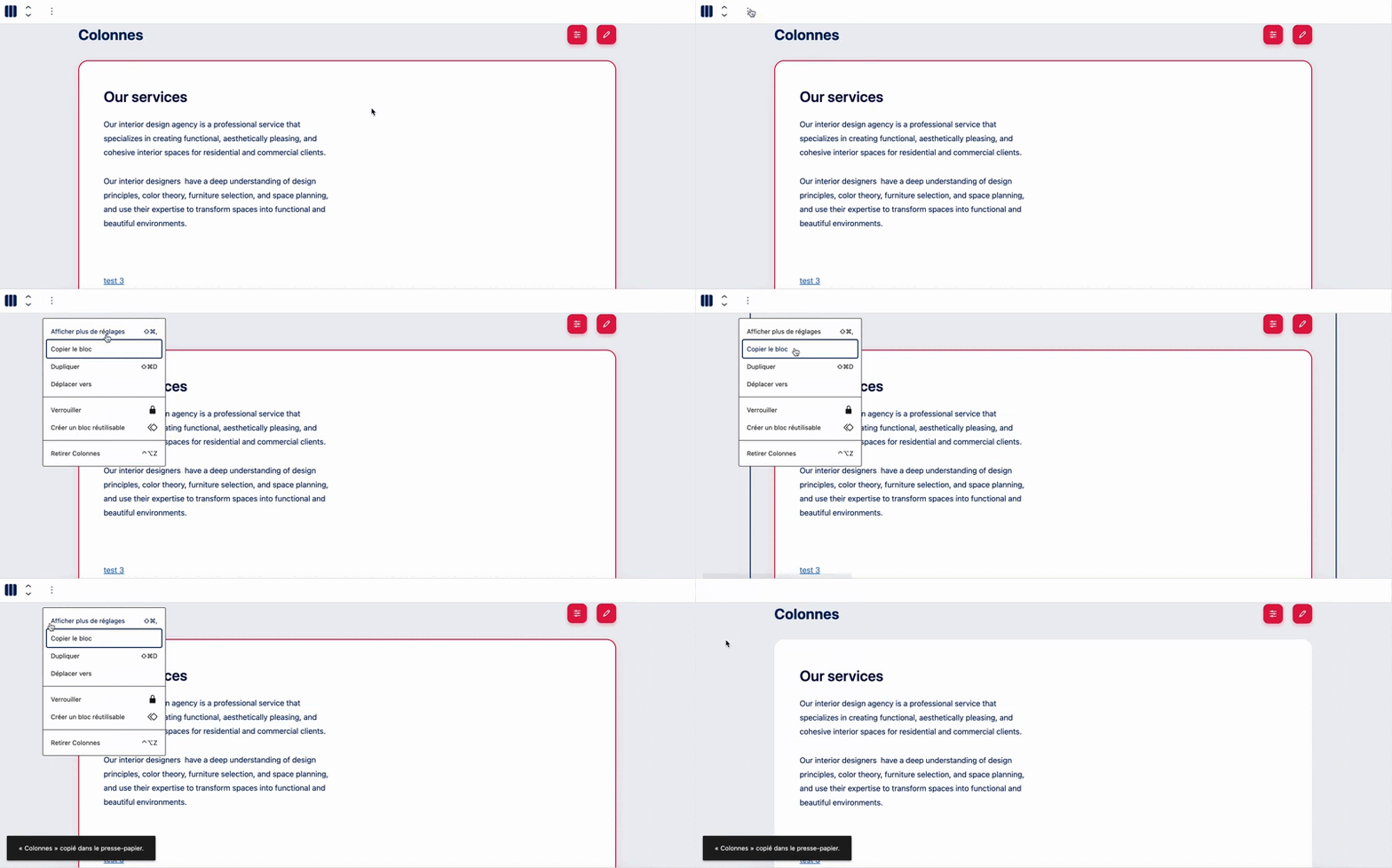
Blocks can be copied and pasted within the same page or to another page.
To do this, you have 2 options: via the Top Toolbar or the List View.
- Click the three dots next to the block and select “Copy block”.
- Go to the desired location (even on a different page), add a new block, and press “Ctrl+V” (Windows) or “Cmd+V” (Mac).
Locking
It is also possible to lock a block to prevent it from being moved or deleted via the Top Toolbar or the List View.
- In the three dots menu, click “Lock”.
- Choose “Lock all” or select specific options to prevent movement or removal.

Minotaure blocks
Each block has its own specific editing parameters, detailed in the following chapters:
Page Jumps (Anchors)
You may sometimes need to create links between different blocks on the same page. For example, you might have a "Sign Up" button in the Hero section that links directly to a form at the bottom of the page.
This method of linking between different elements on the same page is known as "Anchors."
- Select the destination block.
- Open the ‘Settings’ (gear icon) at the top right.
- In the “Block” tab, find the Advanced section and enter a unique HTML Anchor (e.g.,
my-form). - On your link or button, in the URL field, type “#” followed by the ID (e.g.,
#my-form).


The “#” tells the browser to stay on the same page.

Don't forget to add a Featured Image for every Page !