


TABLE OF CONTENTS
Different types of content are available on your site, each with a specific role. Depending on your configuration, their appearance can also vary (blocks, single pages, and index pages).
The available content types are:
- News
- Teams
- FAQs
- Events
- Social networks
- Media
- images
- PDFs
- Audio and video (this type of media is preferably hosted on dedicated platforms like YouTube, SoundCloud, etc., and then embedded or linked on the site)
- Forms
1 - Buttons & CTAs
Now that you’re familiar with the main principles of content editing, here are a few tips to help you customize the user experience on your digital platform and give it an even more professional look.
a - Calls to action
We use this term to identify places or moments where you want the user to take action on your site. This can range from a “learn more” link to launching a media player, and of course, the “buy” button.
However, limiting a Call to Action to just a “button” misses the full creative potential of an action prompt!
In the content blocks, we’ve automatically applied this approach to three types of “labels” (text elements), which can be turned into a call to action (link).
Add a button
- For blocks that include a CTA ‘”Add a call-to-action”


- In the button editor, enter the label (the word or words that will be clickable)
- Choose the button style: primary, secondary, or tertiary
- In the URL field, you can:
- directly paste the URL of the page the link should point to
- start typing the first letters of a word, and the tool will automatically search for content containing those letters. Then simply select the correct destination from the suggested list before confirming the link.
Note: For each button, you can choose to open the linked page in the current browser tab or in a new tab.
- Add a button with text editor
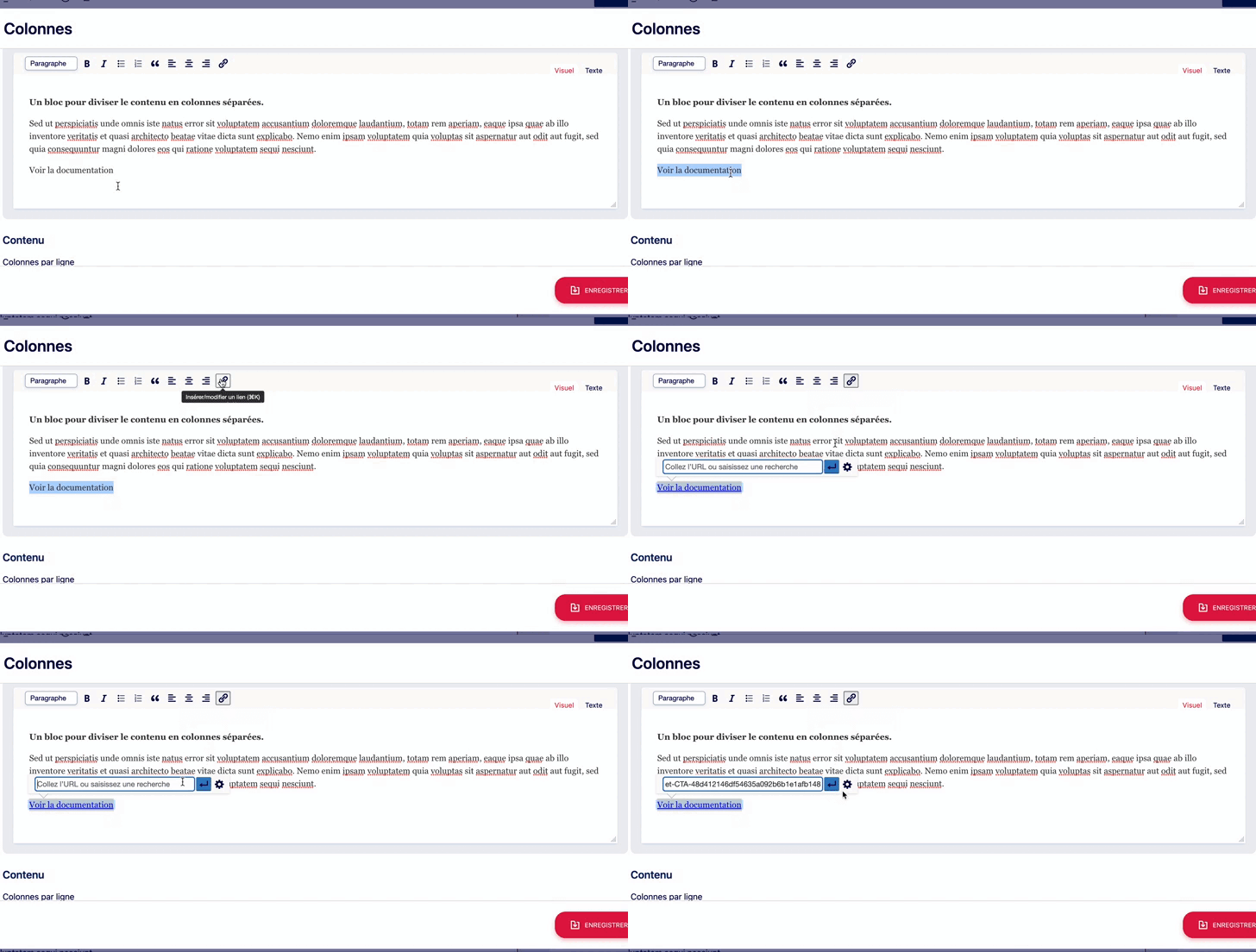
- In the URL field, you can:
- directly paste the URL of the page the link should point to
- start typing the first letters of a word, and the tool will automatically search for content containing those letters. Then simply select the correct destination from the suggested list before confirming the link.
- To change the button style, click the small gear icon to the right of the blue button. A pop-up window will open where you can choose the desired style (“none,” “primary,” “secondary,” “tertiary”).
- In this window, you can also select one of your site’s pages from the list to link to it.
- Click “Add Link” to complete the action.
Note: For each button, you can choose to open the linked page in the current browser tab or in a new tab.
b - Primary, Secondary… Buttons – What’s the Difference?
Having three button levels doesn’t just mean three different looks; it also represents three levels of importance. Using them appropriately improves the readability and accessibility of your site.
Example:

The visual style of the different buttons is tied to your site’s branding, which means it can vary significantly from one site to another—while still keeping the hierarchy of action importance.
The Golden Rule for Buttons: A page should only have one Primary button (the main action, e.g., "Register"). All other buttons should be Secondary or Tertiary to avoid confusing the visitor.
- As the name suggests, the primary button is the most important. It stands out visually and indicates a priority action—the action you want your visitors to take. Example: Add to cart
- The secondary button represents a less important action. Example: View documentation
- The tertiary button is usually even more subtle in appearance.
- Finally, the simple link (or “none” when selected via the text editor), has no specific styling. It’s a standard link—one or more words that may be underlined. It doesn’t have a custom font: it automatically takes the font style of the surrounding text. Adding an underline and a hover color is strongly recommended.
If you still want to add a link in your title, it’s possible—just follow best practices 🙂
- In an editor or area where you can add titles, text, and links, enter your content
- Respect the heading hierarchy when including links (e.g., an H4 cannot directly follow an H2; an H3 must be used in between)
- Ensure the link text combined with the title text clearly describes the link’s purpose
- Make sure the link in the title is visually consistent with the rest of the title’s text style Example :
Which would result in something like this


Links, buttons, and titles each have different roles, calling for different functionalities. Avoid overlapping them!
2 - Organizing Your Content: Filters and Taxonomies
For certain content—referred to as “dynamic” because it displays automatically on one or more pages without needing to be manually place, you have sorting and classification options called taxonomies. These elements allow you to filter, categorize, and organize content, making it easier to manage internally, while also helping visitors refine their results.
For example, they can search for an article on a specific topic, find an event happening at a certain location, or view members of a particular team.

a - Posts (news)
Posts can be organized by:
- Categories
- Tags
In the left-hand menu of your website, clicking on Posts will display the following submenus:

- All posts (lists all created posts)
- Add New Post
- Categories (allows you to create a new post category)
- Tags (allows you to assign an additional filter to posts)
Simply enter a name in the corresponding field, click “Add Category,” and the category will appear in a list on the right. This is where you can manage all categories later.
- Description is optional.
- Slug determines how it appears in the URL.
- Count shows the number of items assigned to this category.
When creating a new article, these categories will appear on the right side of the page. You can check one or more categories to assign the article accordingly. You can select multiple options within each filter type—they are cumulative.
This way, when someone filters by categories or tags, only the relevant articles will appear. Similarly, on any given page, when adding an Articles block, you can choose to display only articles from one or more selected categories.
b - Teams
Teams (your members) can be organized by Function/Role/Position.
In the left-hand menu of your website, clicking on Teams will display the following submenus:

- Teams (lists all people created within your organization)
- Add a Team (allows you to add a new person)
- Position (allows you to create a new role, job, service, or department)
Simply enter a name in the corresponding field, click “Position,” and the category will appear in a list on the right. This is where you can manage all categories later.
- Description is optional.
- Slug determines how it appears in the URL.
- Count shows the number of items assigned to this position.
When creating a new person, these categories will appear on the right side of the page. You can check one or more categories to assign the team member accordingly. This way, when someone filters by categories, only the relevant people will appear. Similarly, on any given page, when adding a Teams block, you can choose to display only members from one or more selected categories.
c - Events
Events can be organized by:
- Type
- Venue (where it takes place)
- Organiser (who organizes it)
In the left-hand menu of your website, clicking on Events will display the following submenus:

- Events (lists all created events)
- Add New Event (allows you to add a new event)
- Type (allows you to create a new event category)
- Venue (allows you to add a new location)
- Organiser (allows you to add a new person or organizing entity)
After clicking on Type, Venue, or Organiser, simply enter a name in the corresponding field, click “Add Category,” and the category will appear in a list on the right. This is where you can manage all categories later.
- Description is optional.
- Slug determines how it appears in the URL.
- Count shows the number of items (here, events) assigned to this category.
When creating a new event, these categories will appear on the right side of the page. You can check one or more categories to assign the event accordingly. You can select multiple options within each filter type—they are cumulative.
This way, when someone filters by categories, only the relevant events will appear. Similarly, on any given page, when adding an Events block, you can choose to display only events from one or more selected categories.
d - FAQs
FAQs can be organized by Types.
In the left-hand menu of your website, clicking on FAQ will display the following submenus:

- FAQs (lists all created FAQs)
- Add New FAQ (allows you to add a new FAQ)
- Type (allows you to create a new FAQ category)
After clicking on Type, simply enter a name in the corresponding field, click “Add Category,” and the category will appear in a list on the right. This is where you can manage all categories later.
- Description is optional.
- Slug determines how it appears in the URL.
- Total shows the number of items (here, FAQs) assigned to this category.
When creating a new FAQ, these categories will appear on the right side of the page. You can check one or more categories to assign the FAQ accordingly. This way, when someone filters by categories, only the relevant FAQs will appear. Similarly, on any given page, when adding an FAQ block, you can choose to display only FAQs from one or more selected categories.
Go to point III. Let’s start : create and manage your website contents →