


TABLE OF CONTENTS
Preview of the settings at the top center. Below the visual, you’ll find the footer configuration settings.
Contact & Socials

a- Contact
- Enter the postal address, email, and phone number
- By default, you are asked to provide an address, a phone number, and an email. If you don’t want to display one of these, simply leave the field blank
b - Social
- Click “Add a social” to add one or more social networks
- For each, you can specify:
- the name
- choose the associated icon (simply type the name in the designated field and select the icon from the dropdown list)
- paste the URL of your social account page
- You can copy, edit, delete, or change the display order of the social networks

Content
- This is where you layout your footer.
- Click “Add a column” (Note: maximum of 4 columns)
- Click on the newly added column:
- Give it a name
- Click “Add content”
- In “Select an option”, choose what you want to display (a menu? Your contact details? Social networks? Enter HTML code? etc.)
- You can change the order of the items added in the column using the two parallel bars. You can also delete, copy, or edit the content of an item.
- If you select “Image” in the options, you can display one or more images from your site’s media library (very useful for showing partner logos, for example!). The display order of these images can be changed.
PAGE LINK: here, paste the URL of the partner organization’s website.IMAGE SOURCE: here, paste the image link from your media library (next to the image in the library, you’ll find a “Copy URL” button).PARTNER'S NAME: write the organization’s name in lowercase.ENTER A SIZE USING NUMBERS ONLY: here, it refers to the logo’s width, so enter a number (usually between 100 and 150, depending on the logo shapes).- by adding another “HTML” option below, in the same column, and following the same steps as above (add an HTML option + code)
- or within the same HTML content field, by separating the code blocks enclosed by
<a>and</a>tags (i.e., the images) with a<br/>tag: - You can add multiple columns (up to 4), copy, edit, or delete them, and change their order.


Do you want to display a partner organization’s logo and have it link to their website when clicked?
It is possible and should be done according to best practices 🙂 !
In the column that will display the logos, click “Select an option” and choose “HTML”. Copy and paste the code below, replacing the italic and bold text with the information related to your image (not in italics or bold).
<a href="page link" target="_blank"><img src="image source" alt="the partner’s name" width="enter a size using numbers only"/></a>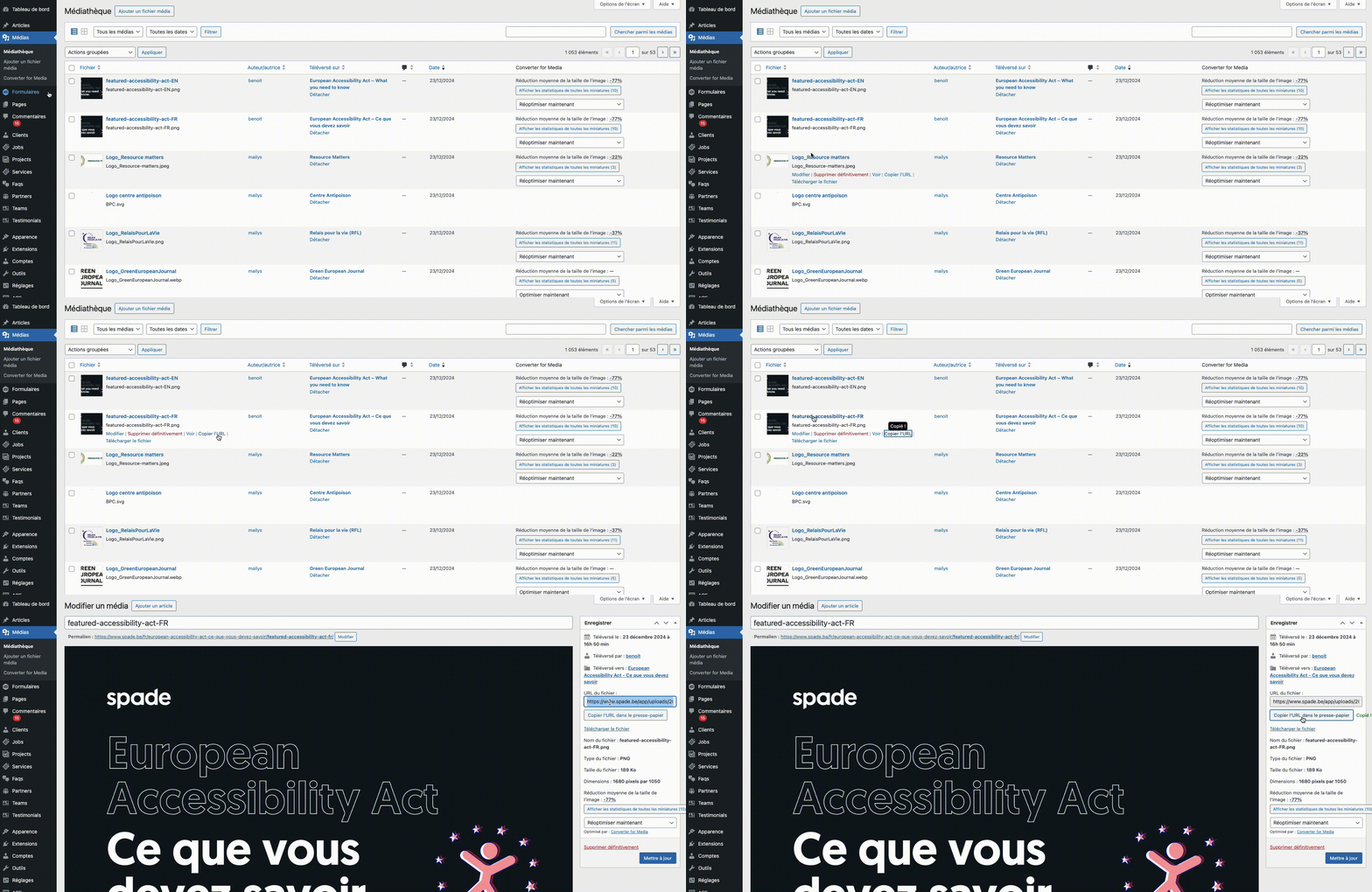
The alt attribute is required for the image for accessibility and must include a description of the action performed when the image is clicked.
Example : alt="Visiter la page de mon partenaire Spade"
You can add multiple images in the same place, each with a link:
<a href="page link" target="_blank"><img src="image source" alt="Visit the partner’s name" width="enter a size using numbers only"/></a><br/><a href="page link" target="_blank"><img src="image source" alt="Visit the partner’s name" width="enter a size using numbers only"/></a>Footer
- Choice of font for the footer element titles (e.g., column titles)
- Choice of text font
- Choice of icon color
- Choice of logo size (width and height in pixels)
- Choice of footer background color
Sub-footer = copyrights and legal notices

- Show or hide the “made by Spade” copyright
- If different from your website name, enter another. If left blank, the website name will be used by default
- Choice of font for the footer sub-elements (copyright, menu items if any)
- Choice of background color for the footer sub-section
In sub-footer, adding a menu (for legal notices for example) can be done through the menu management.
